Laptop Speaker Test - Check Left, Right, Stereo Sound Quality
This laptop speaker test runs in Chrome or Edge. Unplug headphones. Set volume high. Listen for left and right tones.
Speaker not working? Try this
- Check that your device volume isn't muted or turned down low.
- Check your left/right audio balance setting in your operating system's sound settings.
- Disconnect any Bluetooth speakers or headphones that might be capturing the audio output.
- Unplug wired headphones - some devices keep routing sound there even after you unplug.
- Restart your device to clear out any stuck audio driver state.
- Gently clean the speaker grille - dust and debris can muffle or block sound.
- Try this test in another browser or on another device to rule out a page or app issue.
If your speaker has low volume, crackling, or dull sound, water or dust may be blocking it. Then use our
FREE LAPTOP SPEAKER TEST
Laptop Speaker Test to Check PC Sound
Need a laptop speaker test? This free speaker tester lets you test laptop speakers in your browser. Check laptop speakers not working, left and right sound, or crackling. No app. No download.
Unplug headphones. Turn Bluetooth off. Set PC volume high. Then start this laptop sound test below.
Laptop speaker test | PC speaker test | Left / right | No app
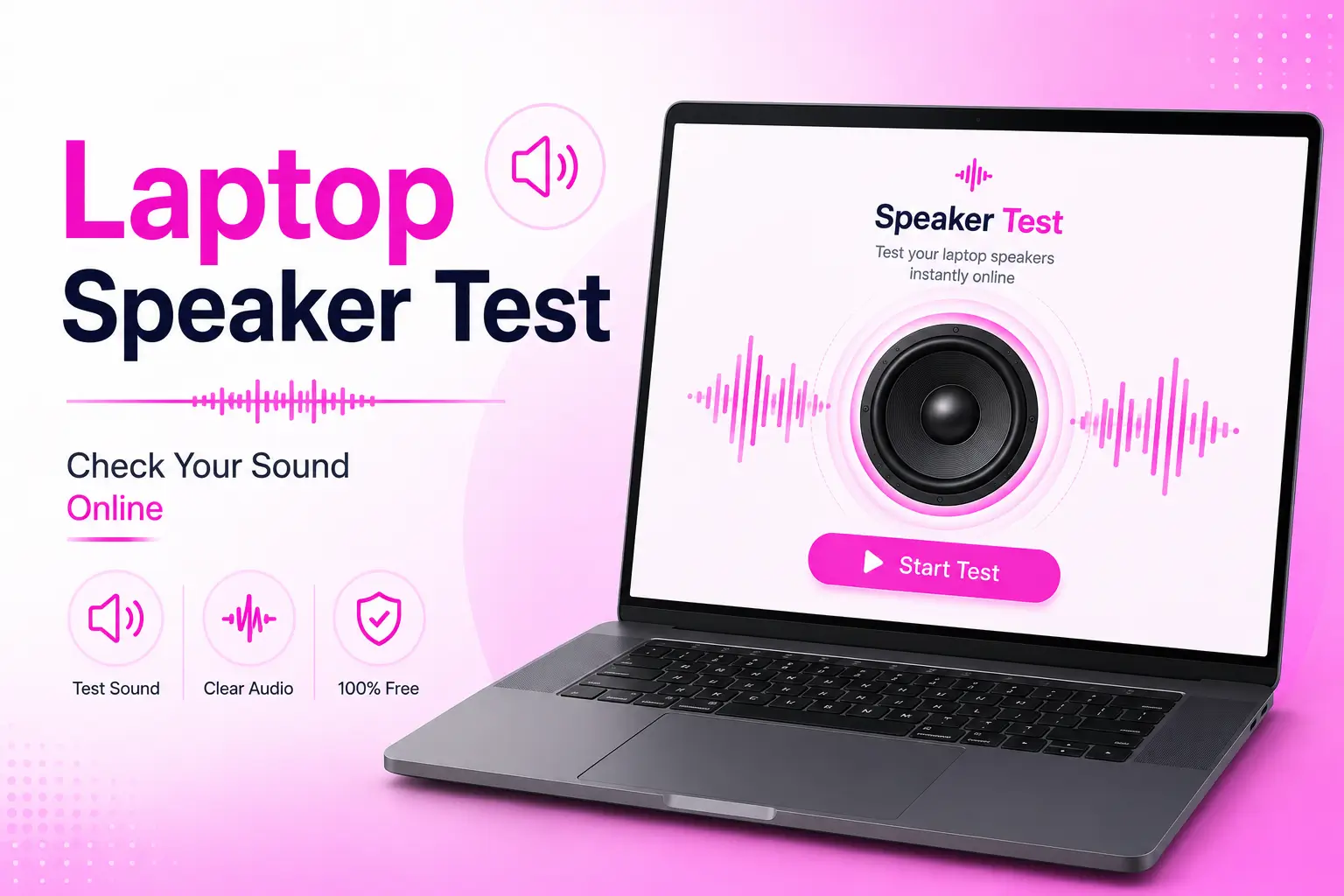
How to Test Laptop Speakers
Three easy steps. This laptop speaker test takes about a minute.
1. Play sound from the laptop
Unplug wired headphones. Turn off Bluetooth earbuds. Set Windows or ChromeOS volume high. Do not mute the function-key speaker key.
2. Start the laptop speaker tester
Tap Play. Use Left and Right pads as a left right speaker test. A good laptop speaker test sounds even on both sides.
3. Check both channels
If one side is quiet, check the Windows balance setting, then test again. For Apple laptops see the MacBook speaker test.
Also: MacBook speaker test. tablet speaker test, speaker test.
When to Use a Laptop Speaker Test
People search for laptop speaker test, laptop speakers not working, and PC speaker test. This page is that tool.
Laptop speakers not working
If YouTube is silent, run this laptop speaker test with headphones unplugged.
Left right speaker test
Most laptops have stereo speakers. Use L and R pads to hear if one channel is dead.
Crackling laptop speaker
A rattle can mean a tired speaker. Driver issues can also cause crackle. Test with this known tone.
PC sound test, no app
This laptop speaker tester online works in Chrome and Edge. Nothing to install.
Windows balance check
If one side is quiet, open Sound settings and check left/right balance, then run the laptop sound test again.
Mac users
For Mac notebooks use the MacBook speaker test.
More on Speaker Test
Iphone Speaker Test
Test your iPhone speaker with clear sound tones to check audio quality and volume. Quickly identify muffled, distorted, or low-volume sound and keep your speaker performing well.
Tablet Speaker Test
Check your tablet’s audio output for clear playback, balanced volume, and smooth sound performance. Quickly spot low volume, distortion, crackling, or unclear audio from the built-in speakers.
Samsung Speaker Test
Test your Samsung audio system for clear playback, balanced tones, and consistent volume levels. Detect muffled sounds, distortion, crackling, or weak output from the device speakers.
Phone Speaker Test
Test your phone’s audio performance for crisp playback, proper volume levels, and balanced sound output. Find issues like buzzing, distortion, low loudness, or unclear audio with a quick speaker check.
Oppo Speaker Test
Check your Oppo phone’s audio output for clear playback, balanced tones, and strong volume. Identify muffled sound, distortion, buzzing, or weak audio with a quick speaker check.
Laptop Speaker Test
Test your laptop’s audio output for clear playback, balanced volume, and reliable sound performance. Detect issues such as muffled audio, distortion, buzzing, or low speaker volume with a quick check.
Android Speaker Test
Test your Android device’s audio output for crisp playback, balanced tones, and consistent volume. Quickly detect muffled sound, buzzing, distortion, or weak speaker performance.
AirPod Speaker Test
Test your AirPods for balanced audio, clear playback, and consistent sound levels in both earbuds. Spot low volume, crackling, distortion, or uneven sound with a quick audio performance check.
Vivo Speaker Test
Test your Vivo phone’s audio output for clear playback, balanced tones, and steady volume levels. Identify muffled audio, distortion, buzzing, or weak sound from the built-in speakers.
Apple Speaker Test
Test your Apple device speakers with clear tones to check sound quality and volume. Quickly identify issues with audio clarity, bass, distortion, or speaker output.
iPad Speaker Test
Test your iPad speakers with clear sound tones to check volume, clarity, and audio quality. Quickly detect distortion, low volume, or other speaker output issues.
Macbook Speaker Test
Test your MacBook speakers with clear audio tones to check volume, clarity, and sound quality. Quickly identify distortion, low volume, bass issues, or uneven speaker output.
Headphone Speaker Test
Our free Headphone Speaker Test plays clear bass, treble and stereo tones so you can check each earcup for weak sound, distortion or a dead side.
Ear Speaker Test
Our free Ear Speaker Test plays a clear tone through your phone’s earpiece, the small speaker at the top you hear during calls, so you can check if it is working.
Blown Speaker Test
Our free Blown Speaker Test plays bass, treble and distortion tones so you can hear if your speaker is damaged, crackling or rattling.
One Plus Speaker Test
Our free OnePlus Speaker Test plays bass, treble and stereo tones so you can check your OnePlus phone’s loudspeaker for weak, muffled or crackly sound.
Google Pixel Speaker Test
Our free Google Pixel Speaker Test plays bass, treble and stereo tones so you can check your Pixel’s speakers for weak, muffled or crackly sound.
Speaker Test
Our free Speaker Test plays bass, treble, stereo and distortion tones so you can quickly check if your speaker sounds clear, balanced and loud enough.
WHY THIS LAPTOP SPEAKER TEST
A free laptop speaker tester in your browser
A laptop speaker test tells you if the built-in speakers can play sound. Clear stereo means they work. One quiet side may mean balance settings or hardware. Keep tests short. See Contact.
- Free laptop speaker test in the browser
- Left / right PC speaker test
- No software to install
- Works on Windows laptops
MacBook speaker test | Home
WHY THIS LAPTOP SPEAKER TEST
What is a laptop speaker test?
A laptop speaker test is a free online tool that helps you check whether your laptop’s built-in speakers are working properly. It plays test sounds, such as left and right channel tones, bass and treble frequencies, and sample audio, so you can hear whether the sound is clear, balanced, and loud enough. If you notice crackling, distortion, low volume, or sound coming from only one side, the test helps you spot the problem quickly. You don’t need to install any software. Just open the page, press play, and listen. It’s a simple way to find speaker issues before you try fixes or consider repairs.
Left and Right Speaker Test
Most laptops have two speakers, one on each side. They may sit under the keyboard, on the sides, or near the hinge.
During the left test, sound should come only from the left.
During the right test, only from the right. Both should be about the same loudness.
If only one side works:
- The balance setting may be shifted to one side.
- Mono audio may be turned on in accessibility settings.
- A speaker connection may be loose or damaged.
Volume and Distortion Test
Raise the volume step by step and listen closely. A healthy laptop speaker gets louder smoothly. A weak or damaged one may:
- Stay quiet even at full volume
- Crackle or buzz when the volume rises
- Rattle when bass tones play
- Sound harsh or “tinny” at high volume
A little thinness at maximum volume is normal for small speakers. Constant crackling or buzzing is not.
Bass and Treble Test
Laptop speakers are tiny, so bass is limited, but you should still hear something.
Low tones
You should hear a soft, steady hum. If there is only a rattle or nothing at all, check for damage.
Mid tones
Voices and instruments should sound natural.
High tones
These should be clear without sharp, painful whistling.
Keep the volume low when testing very high and very low tones.
What Good Results Sound Like
- Sound plays from both sides
- Left and right volumes match
- No crackle, hiss, or buzz
- The volume rises evenly
- Voices are easy to understand
Laptop Speakers Not Working? Common Causes
- Muted or very low volume in the system or in an app
- Wrong output device selected, like a TV, monitor, or Bluetooth speaker
- Headphones still connected, or a stuck headphone jack
- Outdated or corrupted audio driver (mostly Windows)
- Software glitch after an update
- Disabled audio service in the system
- Dust or debris blocking the speaker grill
- Hardware damage from a drop, liquid, or age
How to Fix Laptop Speaker Problems
Check Volume and Mute
Look at the volume icon on your taskbar or menu bar. Make sure the system is not muted. Also check the volume inside the app you are using, like a video player or browser tab.
Choose the Right Output Device
Windows: Right-click the speaker icon, open Sound settings, and choose your laptop speakers as the output.
Mac: Open System Settings, then Sound, then Output, and select the internal speakers.
Chromebook: Click the clock area, open the audio options, and pick the built-in speakers.
Unplug Everything
Remove headphones, USB audio devices, and HDMI cables. Turn off Bluetooth for a moment. Then test again.
Restart Your Laptop
A restart clears many small sound glitches.
Run the Audio Troubleshooter (Windows)
Open Settings, go to System, then Sound, and run the troubleshooter. It can find and fix common problems on its own.
Update or Reinstall the Audio Driver (Windows)
- Open Device Manager.
- Expand Sound, video and game controllers.
- Right-click your audio device and choose Update driver.
- If that fails, choose Uninstall device, then restart. Windows usually reinstalls it.
Restart the Audio Service
On Windows, restart the Windows Audio service in the Services app. On Mac, restarting the laptop does the same job.
Reset Sound on Mac
Restart the Mac. If the problem stays, check for macOS updates and test again in Safe Mode.
Check Equalizer and Sound Effects
Audio enhancements and equalizer presets can make sound strange. Turn them off, test again, and turn them on one at a time.
Clean the Speaker Grills
Use a soft, dry brush or a short burst of compressed air from a distance. Don’t push sharp objects into the openings.
When to Get Hardware Help
Contact a repair professional if:
- Sound is still missing after all the software fixes
- Crackling continues even at low volume
- The problem started after a drop or liquid spill
- Headphones work, but the built-in speakers do not
Headphones working while speakers stay silent often points to a speaker or connection problem. If your laptop is under warranty, contact the maker before opening it yourself.
Tips for Better Laptop Sound
- Place the laptop on a hard, flat surface. Soft beds and blankets block speakers that fire downward.
- Keep vents and speaker grills clear of dust.
- Use the latest drivers and system updates.
- Keep audio enhancements off while testing.
- For richer sound, use headphones or external speakers.
- Check the volume in each app, not only the system volume.
Buying a Used Laptop? Test the Speakers First
Speakers are easy to miss during a quick check. Before you pay for a used laptop:
- Run the left, right, and stereo tests
- Raise the volume to about 80% and listen for rattling
- Play a voice clip and a music clip
- Look for dirt, damage, or missing grills
Weak or noisy speakers can be a sign of hidden damage, and they can help you negotiate a better price.
Ready to test your laptop speakers?
WHY THIS LAPTOP SPEAKER TEST
A free laptop speaker tester in your browser
A laptop speaker test tells you if the built-in speakers can play sound. Clear stereo means they work. One quiet side may mean balance settings or hardware. Keep tests short. See Contact.
- Free laptop speaker test in the browser
- Left / right PC speaker test
- No software to install
- Works on Windows laptops
MacBook speaker test | Home