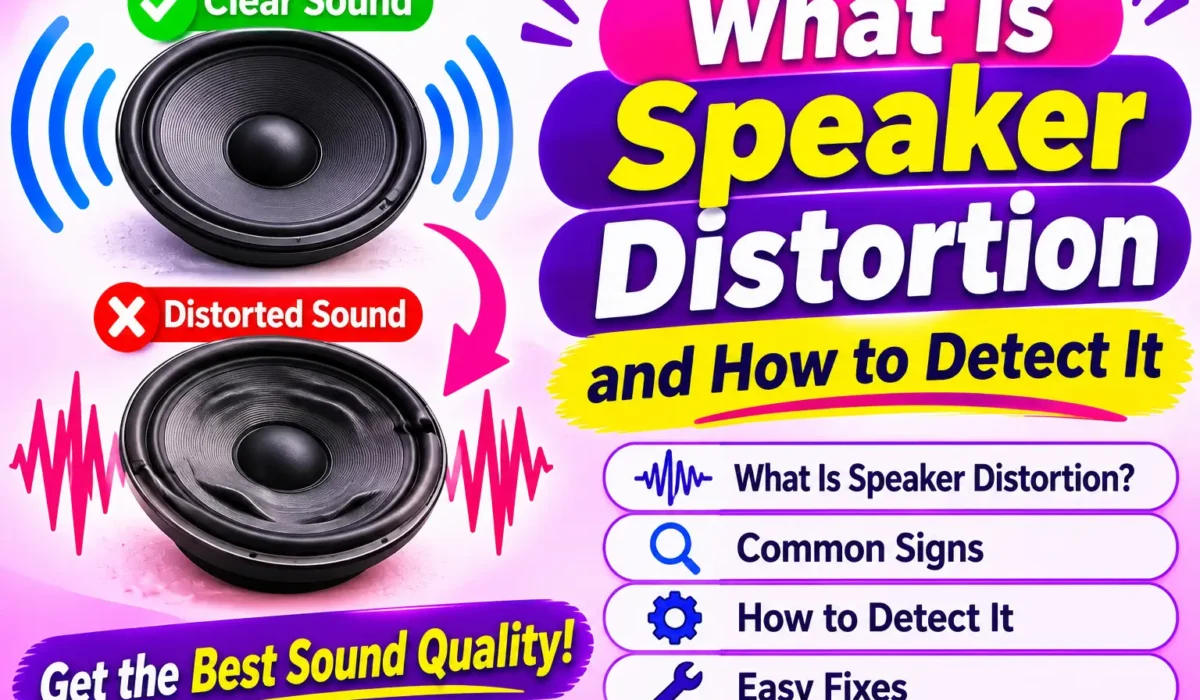
What Is Speaker Distortion and How to Detect It
Speaker distortion is any unwanted change in sound that makes audio crackle, buzz, rattle, or sound harsh and unclear instead of clean. It happens when a speaker cannot reproduce the original signal accurately. You can detect it by playing a test tone at a moderate volume and listening for crackling, fuzz, or rattling.
This guide explains what distortion is, what causes it, how to detect it on your phone, laptop, or external speaker, and how to fix it step by step.
What Is Speaker Distortion?
Speaker distortion is a difference between the sound your device is supposed to play and the sound you actually hear. A healthy speaker moves its cone smoothly and produces a clean version of the audio. When something interferes, the output becomes rough, fuzzy, or broken.
The process works like this:
- Your device sends an electrical audio signal to the speaker.
- The speaker cone vibrates to turn that signal into sound waves.
- If the signal is too strong, the cone is blocked, or a part is damaged, the vibration is no longer accurate.
- The result is extra noise and unwanted tones mixed into the original sound.
Signs of Speaker Distortion
The most common sign is crackling, buzzing, or fuzzy sound that gets worse as you raise the volume. Other signs include:
- Crackling or popping during music, calls, or videos
- Buzzing or rattling on bass sounds
- Harsh, scratchy, or “tinny” voices
- Sound that breaks up at high volume
- Muffled audio that sounds like it is underwater
- Sound that is clear at low volume but distorted at high volume
- Distortion on only one side (left or right)
If you notice any of these, your speaker may be distorting.
What Causes Speaker Distortion?
Distortion is mainly caused by excessive volume, dust or water in the speaker, damaged components, or poor audio files. Here are the causes in detail:
- Volume too high: Pushing the speaker beyond its limit makes the cone move too far and the sound clips.
- Dust and lint: Dirt in the grille blocks airflow and causes rattling or muffled sound.
- Water or moisture: Droplets inside the speaker disturb the cone and create crackling.
- Damaged speaker cone or coil: Drops, age, or overuse can tear or loosen internal parts.
- Loose connections: Faulty cables or ports create crackling and sound cutouts.
- Low-quality audio file: Heavily compressed or poorly recorded audio sounds distorted on any speaker.
- Software or driver issues: Outdated drivers or sound enhancement settings can add distortion.
- Bass boost or equalizer settings: Extreme settings overload small speakers.
How to Detect Speaker Distortion
The best way to detect distortion is to play a clean test tone and listen carefully while raising the volume slowly. A clean tone makes distortion easy to hear because there is no complex music to hide the problem.
Step 1: Use an Online Speaker Test
Open a speaker test tool and play the sound tones at a moderate volume. The tool plays clear frequency sounds and left and right channel tones, so you can hear the exact quality of your speaker.
- Open the test in your browser.
- Set your device volume to about 50 percent.
- Play the test tone and listen for crackling, buzzing, or fuzz.
- Raise the volume slowly and notice at what level the distortion begins.
- Test the left and right channels separately.
If the tone is clean at all levels, your speaker is healthy. If it crackles or buzzes, you have confirmed distortion.
👉 Test your speaker for distortion with the free Speaker Test tool.
Step 2: Test Different Audio Sources
Play different songs, videos, and apps to find out whether the distortion comes from the speaker or the audio file.
- If every source sounds distorted, the speaker or device is the cause.
- If only one file or app is distorted, the source is the problem.
- If distortion appears only on bass-heavy music, the speaker is being overloaded.
Step 3: Compare with Headphones
Plug in headphones and play the same audio. If the sound is clean in headphones but distorted through the speaker, the built-in speaker has the problem. If both are distorted, check the audio file or software settings.
Step 4: Check at Low and High Volume
Distortion that appears only at high volume usually means the speaker is being overdriven, while distortion at all volumes suggests dirt, water, or damage.
- Low volume distortion: blockage, moisture, or damaged speaker
- High volume distortion only: speaker limit reached, or too much bass boost
How to Fix Speaker Distortion
Most distortion is fixed by lowering the volume, cleaning the speaker, and turning off sound effects. Follow these steps in order.
Step 1: Lower the Volume
Reduce the volume to about 70 percent and test again. Small speakers cannot handle maximum power cleanly. If the sound becomes clear at a lower level, the speaker was simply being pushed too hard.
Step 2: Turn Off Equalizer and Bass Boost
Disable bass boost, equalizer presets, and sound enhancements. These settings can add extra strength to the low frequencies and overload small speakers.
- Android: Settings, Sound and vibration, Sound effects
- iPhone: Settings, Music, EQ (set to Off)
- Windows: Sound settings, speaker properties, Enhancements (disable all)
- Mac: Check that no third-party audio apps are adding effects
Step 3: Clean the Speaker Grille
Gently brush the grille with a soft, dry brush to remove dust and lint.
- Power off the device.
- Brush the grille gently with a soft brush.
- Hold the device with the speaker facing down and tap lightly.
- Wipe with a microfiber cloth.
Never use needles or sharp tools. They can tear the speaker mesh.
Step 4: Remove Water and Dust with Sound
A speaker cleaner plays a low-frequency sound that vibrates the speaker strongly enough to push out water and fine dust. It is safe and needs no tools.
- Place the device with the speaker facing down on a soft cloth.
- Play the cleaner sound for one to two minutes.
- Wipe away any water or dust that comes out.
- Repeat if distortion remains, then run a speaker test again.
👉 Clear water and dust with the free Speaker Cleaner tool.
Step 5: Check Cables and Connections
For external speakers and headphones, reconnect the cable firmly and test another cable or port. Wiggle the cable while sound plays. If crackling changes, the cable or jack is damaged.
Step 6: Update Software and Drivers
Install the latest system update and audio drivers. On Windows, open Device Manager, find your audio device, and choose Update driver. On phones, install any pending software update, then restart.
Step 7: Restart the Device
Restart your device to clear temporary audio glitches. Power it off, wait 30 seconds, turn it on, and run the speaker test again.
What Not to Do
- Don’t keep playing audio at maximum volume when you hear crackling.
- Don’t use pins, needles, or sharp objects to clean the speaker.
- Don’t blow into the speaker with your mouth.
- Don’t use a hairdryer on high heat near the speaker.
- Don’t put a wet phone in rice. It does not work reliably.
- Don’t ignore distortion. Playing a damaged speaker loudly can make the damage permanent.
When to Repair or Replace the Speaker
If distortion stays after cleaning, lowering volume, and updating software, the speaker hardware is likely damaged. A torn cone, a burned voice coil, or water damage cannot be fixed with settings. A service center can replace the speaker module on a phone or laptop. For external speakers or headphones, replacement is often the more practical choice. If the device is under warranty, contact the manufacturer first.
Frequently Asked Questions
What does speaker distortion sound like?
It sounds like crackling, buzzing, rattling, or fuzzy, harsh audio. Voices may sound scratchy and bass may sound broken.
Why does my speaker crackle at high volume?
The speaker is being pushed beyond its limit. Lower the volume and turn off bass boost to see if the sound becomes clean.
Can dust cause speaker distortion?
Yes. Dust and lint in the grille block the sound path and can cause rattling and muffled audio. Cleaning often fixes it.
Can water cause crackling in a speaker?
Yes. Water inside the speaker disturbs the cone and produces crackling. A speaker cleaner sound can push the water out.
How can I test my speaker for distortion online?
Open a speaker test tool, play the tones at a moderate volume, and listen for crackling or buzzing as you raise the volume slowly.
Is speaker distortion permanent?
Not always. If the cause is dust, water, or settings, it can be fixed. If the cone or coil is damaged, the speaker needs repair or replacement.
Final Answer
Speaker distortion is unwanted crackling, buzzing, or harshness in your sound, and most cases come from high volume, dirt, moisture, or sound settings. Detect it with a clean test tone, find out whether the problem is the speaker or the audio file, then fix it by lowering volume, disabling effects, and cleaning the speaker. Repair is needed only if the problem remains after all steps.
Start with the two quickest checks: