
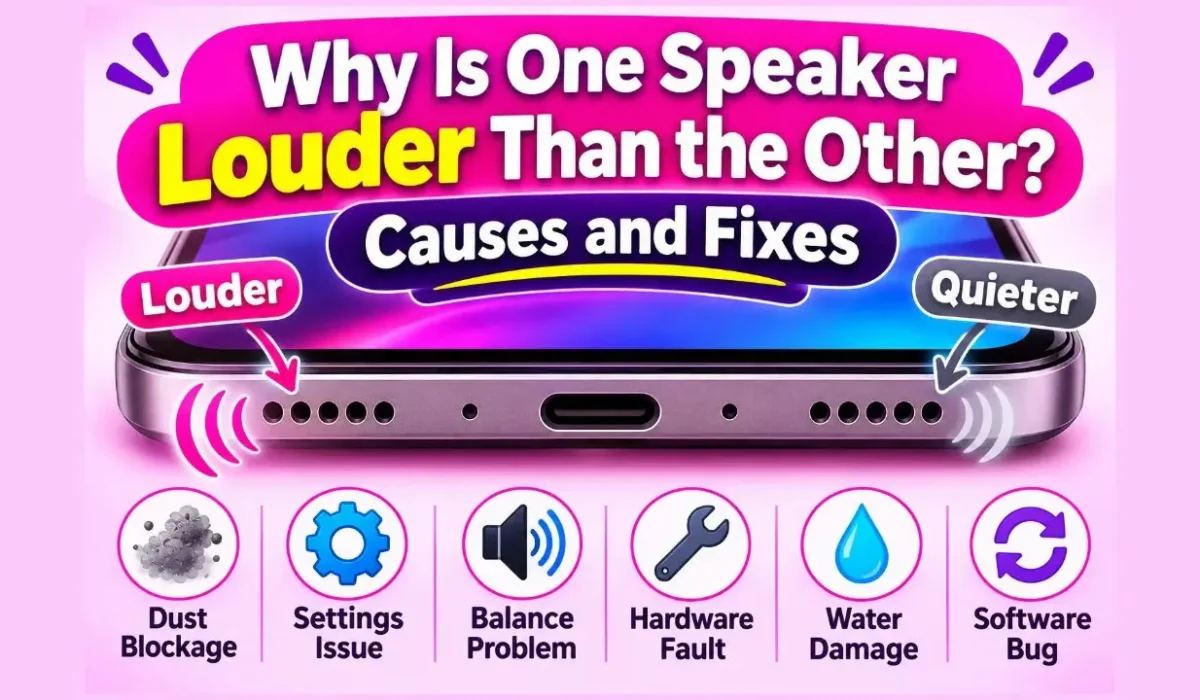
Why Is One Speaker Louder Than the Other? Causes and Fixes
One speaker is louder than the other mainly because of a wrong balance setting, dust or water in one grille, a damaged cable, mono audio mode, or a worn speaker. Most of these causes are easy to fix at home. You can find the exact cause by running a left and right channel test, checking your sound settings, and cleaning both speakers.
This guide explains why one speaker sounds louder than the other on phones, laptops, headphones, and external speakers, and gives step-by-step fixes for each cause.
What Does Uneven Speaker Volume Mean?
Uneven speaker volume means the left and right channels are not playing at the same loudness, so the sound feels lopsided. In healthy stereo audio, both sides produce a similar level, which creates a balanced and wide soundstage.
Common signs include:
- One side sounds much louder than the other
- Music seems to come from only one direction
- Voices feel off-center instead of in the middle
- One earbud or headphone cup is quieter
- One side sounds muffled, thin, or crackly
- Movies and games lose their directional sound
- Sound was balanced before but changed suddenly
Noticing which side is weak helps you find the cause faster.
How to Confirm the Problem First
Run a left and right channel test to confirm which speaker is weak before you change any settings. A clean test tone makes the difference easy to hear.
- Open an online speaker test in your browser.
- Set your volume to a comfortable level.
- Play the left channel tone and note the loudness.
- Play the right channel tone and compare.
- Play both channels together and listen to the balance.
If both channels sound equal in the test, the problem is in a specific app, video, or audio file. If one side is weaker, continue with the causes below.
Test your left and right speakers with the free Speaker Test tool.
Cause 1: Balance Setting Is Not Centered
The most common reason is a stereo balance slider that has moved toward one side. This can happen by accident or after a software update.
How to fix it:
- Android: Open Settings, go to Accessibility, then Audio, and set the Left/Right balance slider to the center.
- iPhone: Open Settings, go to Accessibility, then Audio & Visual, and center the Balance slider.
- Windows: Right-click the speaker icon, open Sound settings, select your device, open Properties, then Levels, and click Balance to make both sides equal.
- Mac: Open System Settings, go to Sound, choose Output, and center the Balance slider.
- Play the test tone again and compare.
Cause 2: Mono Audio Is Turned On
Mono audio merges both channels into one, which can make the sound feel uneven or flat. Some phones also send the full mono signal to only one speaker.
How to fix it:
- Open the Accessibility settings on your phone or computer.
- Find Mono Audio and turn it off.
- Restart your media app and play the test again.
Cause 3: Dust or Lint Blocking One Speaker
Dust and lint can block one speaker grille more than the other, which makes that side quieter. This is very common on phones and laptops, where the two grilles collect dirt at different rates.
How to fix it:
- Turn off the device.
- Gently brush each grille with a soft, dry brush.
- Hold the device with the speaker facing down and tap lightly to release loose dust.
- Wipe the surface with a microfiber cloth.
- Turn the device on and test both channels again.
Never use pins, needles, or sharp tools. They can tear the speaker mesh.
Cause 4: Water or Moisture in One Speaker
Water trapped in one speaker grille muffles that side and makes the other side seem louder. This can happen after a splash, rain, sweat, or humidity.
How to fix it:
- Wipe the outside of the device with a dry cloth.
- Place the device with the weak speaker facing down on a soft cloth.
- Play a speaker cleaner sound for one to two minutes. It uses low-frequency vibration to push water and dust out of the grille.
- Wipe away any water that comes out.
- Repeat if needed, then let the device dry in open air.
Clear water and dust with the free Speaker Cleaner tool.
Cause 5: Earwax or Dirt in Earbuds and Headphones
Earwax and dirt on the earbud mesh block sound and make one earbud quieter than the other. One ear often collects more wax or sweat than the other.
How to fix it:
- Remove the ear tips and wash them with mild soap and water. Dry them fully.
- Gently brush the mesh with a soft, dry brush.
- Use a clean, dry cotton swab on the surface only.
- Avoid liquids on the mesh itself.
- Reattach the tips and test both sides.
Cause 6: Damaged Cable, Jack, or Port
A damaged cable or loose jack reduces the signal to one channel and makes that side quieter or silent. Bent cables and worn connectors are common causes.
How to fix it:
- Unplug the audio cable and plug it in firmly again.
- Try a different port on your device.
- Wiggle the cable gently while audio plays. If the volume changes, the cable is damaged.
- Test with another cable or another pair of headphones.
- Clean the audio jack or charging port with a soft dry brush.
Cause 7: Bluetooth Connection Problems
A weak or unstable Bluetooth connection can make one earbud or speaker sound quieter than the other. This is common with true wireless earbuds.
How to fix it:
- Turn Bluetooth off and on again.
- Forget the device in Bluetooth settings and pair it again.
- Place the earbuds in the case, wait 10 seconds, and take them out.
- Keep the device close to your phone and away from interference.
- Update the earbud firmware through its companion app if available.
Cause 8: Audio Source or App Problem
Some videos, songs, and apps are recorded with uneven stereo, so one side sounds louder even on a healthy speaker. If the unevenness appears only in one file or app, the speakers are probably fine.
How to fix it:
- Play different songs, videos, and apps.
- If only one source is uneven, try another version of the file.
- Check the app’s own audio settings for a balance or mono option.
- Clear the app cache and update the app.
Cause 9: Outdated Drivers or Software Glitch
Old audio drivers or a temporary bug can send uneven volume to the two channels. This is common on Windows laptops after updates.
How to fix it:
- Restart your device.
- Install the latest system update.
- On Windows, open Device Manager, expand Sound, video and game controllers, right-click your audio device, and choose Update driver.
- Restart and test again.
Cause 10: Worn or Damaged Speaker
A speaker that has aged or been dropped can lose output on one side permanently. A torn cone, damaged coil, or loose internal connection cannot be fixed with settings.
Signs of hardware damage:
- The weak side stays weak after cleaning and settings checks
- The speaker test is quiet or distorted on one channel at every volume
- The problem started after a drop or water exposure
- The same weak side follows the device to other apps
How to fix it:
- Complete all the fixes above first.
- Check whether the device is under warranty and contact the manufacturer.
- Visit a trusted repair shop to replace the speaker.
- For headphones and earbuds, replacement is often the more practical choice.
How to Tell Which Cause You Have
Match your symptoms to the cause to save time.
- Uneven after a settings change or update: balance slider or mono audio
- Muffled on one side: dust or water in the grille
- One earbud weaker: earwax, dirt, or Bluetooth issue
- Changes when you move the cable: damaged cable or jack
- Uneven only in one video or app: audio source problem
- Weak at every setting even after cleaning: speaker damage
What Not to Do
- Don’t turn the volume to maximum to compensate for the weak side. It can damage the louder speaker.
- Don’t use sharp objects to clean the grille.
- Don’t pour liquid cleaners onto the speaker mesh.
- Don’t blow into the speaker with your mouth.
- Don’t put a wet device in rice. It does not work reliably.
- Don’t open the device yourself unless you have repair experience.
Frequently Asked Questions
Why is my left speaker louder than my right?
The most common reasons are a balance slider that is off-center, dust or water in the right grille, or a damaged cable. Run a channel test to confirm.
Why is one earbud quieter than the other?
Earwax or dirt on the mesh, a Bluetooth glitch, or a balance setting is usually the cause. Clean the earbud and re-pair it.
Can dust make one speaker quieter?
Yes. Dust and lint block the sound path, and one grille often gets dirtier than the other. Cleaning brings the sound back in most cases.
How do I balance my left and right speakers?
Open your accessibility or sound settings and center the left/right balance slider. Then run a speaker test to check both channels.
Is uneven speaker volume a sign of damage?
Not always. Settings, dirt, and moisture are far more common. Hardware damage is likely only if the problem stays after all fixes.
Can a software update cause uneven speaker volume?
Yes. Updates can reset balance or mono audio settings or cause driver bugs. Check your settings and update the drivers.
Final Answer
One speaker is louder than the other mostly because of balance settings, mono audio, dust, moisture, earwax, or a bad cable, and only rarely because of real hardware damage. Start with a left and right channel test, center the balance, clean both speakers, and remove water with a speaker cleaner. Visit a repair shop only if the weak side stays weak after every step.
Start with the two quickest checks: