
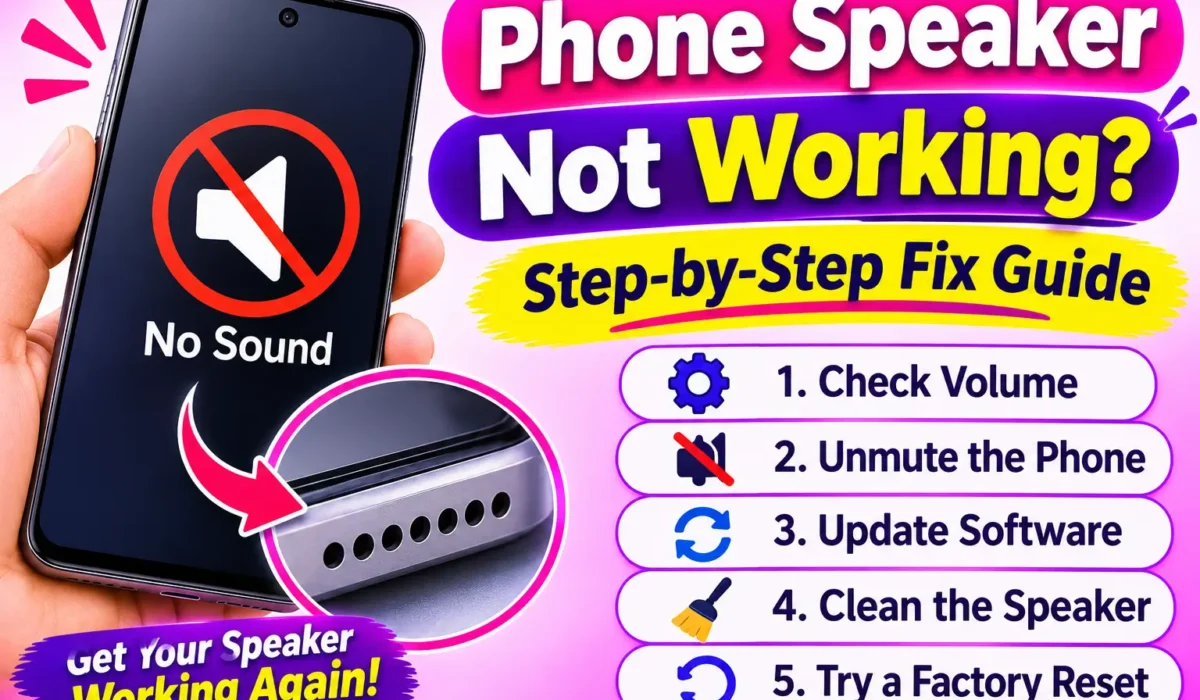
Phone Speaker Not Working? Step-by-Step Fix Guide
You get a call and hear nothing. You play a video and the sound is gone, or it crackles, or it is so quiet you can barely hear it. A phone speaker that stops working is frustrating, but in most cases the cause is simple and you can fix it yourself in a few minutes.
This guide walks you through every step: how to confirm the problem, the most common causes, and the fixes that work on both Android phones and iPhones.
Signs Your Phone Speaker Is Not Working
Before you start fixing, identify which problem you have:
- No sound at all from calls, music, or videos
- Sound is very low even at full volume
- Audio is crackling, buzzing, or distorted
- Sound works only through headphones
- Sound works on speaker mode but not during normal calls
- Voices sound muffled or underwater
- Sound cuts in and out randomly
Each symptom points to a different cause, so noting yours will save time.
Common Reasons a Phone Speaker Stops Working
Most speaker problems come from one of these causes:
- Silent or Do Not Disturb mode: The phone is muted without you noticing
- Low volume settings: Media, ringtone, and call volumes are separate
- Bluetooth connection: Audio is going to an earbud or speaker nearby
- Dust or lint in the grille: Blocks the sound from coming out
- Water or moisture: Muffles the speaker or makes it crackle
- Software glitch: A bug or outdated system causes audio failure
- Faulty app: One app has no sound while others work
- Hardware damage: A drop or age has damaged the speaker
Start with the easy causes first. Most users fix the problem in the first three steps.
Step 1: Check Volume and Silent Mode
It sounds obvious, but this solves a surprising number of cases.
- Press the volume up button and check the on-screen slider.
- Make sure the Media, Ringtone, and Call volumes are all raised.
- Turn off Silent, Vibrate, or Do Not Disturb mode.
- On iPhone, check the Ring/Silent switch on the side.
Step 2: Disconnect Bluetooth and Headphones
If your phone is still connected to a wireless device, sound will play there instead of the speaker.
- Open Settings and turn Bluetooth off.
- Unplug any wired headphones or adapters.
- Check that the headphone icon is not stuck on the status bar.
- Play a sound again.
If the headphone icon appears with nothing plugged in, lint may be stuck in the charging port or jack. Clean it gently with a soft dry brush.
Step 3: Run a Speaker Test
Do not guess whether the speaker works. Test it properly. An online speaker test plays clear tones and sounds so you can hear the exact quality, volume, and any distortion.
- Open the test in your phone browser.
- Raise the volume to a moderate level.
- Play the left and right channel tones.
- Listen for silence, crackling, or weak sound.
If the test plays normally, the hardware is fine and the problem is in a specific app or setting. If the test is silent or distorted, continue with the steps below.
Check your phone speaker right now with the free Speaker Test tool.
Step 4: Restart Your Phone
A restart clears temporary software glitches, reloads audio services, and fixes many “no sound” problems.
- Power off your phone completely.
- Wait 30 seconds.
- Turn it on and test the sound again.
Step 5: Clean the Speaker Grille
Pocket lint, dust, and dirt build up in the speaker opening over time. This blocks sound and makes the speaker seem weak or dead.
- Power off the phone.
- Use a soft, dry brush or a clean toothbrush to gently brush the grille.
- Hold the phone with the speaker facing down and tap it lightly to release loose dust.
- Wipe the surface with a dry microfiber cloth.
Never push pins, needles, or toothpicks into the grille. They can tear the speaker mesh and cause permanent damage.
Step 6: Remove Water or Moisture from the Speaker
If your phone got wet, even from a splash, water droplets can sit inside the speaker and muffle the sound. The sound may come back on its own after drying, but you can speed this up.
A speaker cleaner plays a special low-frequency sound that creates vibrations strong enough to push water and dust out of the speaker grille. It works safely and needs no tools.
- Place the phone with the speaker facing down on a soft cloth.
- Play the speaker cleaner sound for a minute or two.
- Wipe away any water that comes out.
- Repeat if the sound is still muffled.
Clear water and dust with the free Speaker Cleaner tool.
Step 7: Check App-Specific Sound Settings
If only one app has no sound, the phone speaker is probably fine.
- Open the app’s settings and check that sound is not muted.
- Clear the app cache from your phone’s app settings.
- Update the app to the latest version.
- Uninstall and reinstall the app if nothing else works.
Step 8: Update Your Phone Software
Outdated software can cause audio bugs. Updates often include fixes for sound issues.
- Open Settings and go to Software Update.
- Download and install any available update.
- Restart the phone and test again.
Step 9: Reset Sound and Network Settings
If the problem remains, a settings reset can remove hidden conflicts.
- Open Settings and look for Reset options.
- Choose Reset Network Settings or Reset All Settings. This does not delete your photos or files.
- Reconnect to Wi-Fi and test the speaker again.
Back up your phone before any reset to stay safe.
Step 10: Try Safe Mode (Android)
Safe Mode disables third-party apps. If sound works in Safe Mode, an installed app is causing the problem.
- Hold the power button and long-press “Power off.”
- Tap OK to restart in Safe Mode.
- Test the speaker.
- If it works, remove recently installed apps one by one.
What Not to Do
- Don’t use sharp objects to clean the speaker grille.
- Don’t blow into the speaker with your mouth. Moisture can make things worse.
- Don’t put the phone in rice. It does not work well and can leave dust inside.
- Don’t use a hairdryer on high heat near the speaker.
- Don’t keep the volume at maximum if the sound is crackling.
- Don’t open the phone yourself unless you have repair experience.
When to Visit a Repair Shop
If you have tried all the steps above and the speaker test still gives no sound or heavy distortion, the hardware is likely damaged. This can happen after a hard drop, long-term water exposure, or normal wear.
A service center can replace the speaker module, which is usually an affordable repair. If the phone is under warranty, contact the manufacturer first.
Frequently Asked Questions
Why is my phone speaker not working but headphones work?
The phone may think headphones are connected because of lint in the port, or the speaker itself may be blocked or damaged. Clean the port and the grille, then run a speaker test.
Why is my phone speaker crackling?
Dust, moisture, or very high volume are the most common causes. Clean the grille and lower the volume. If crackling continues, the speaker may be damaged.
How do I know if my phone speaker is damaged?
Play a speaker test. If the sound is silent, heavily distorted, or still broken after cleaning and restarting, the hardware is likely faulty.
Can water damage a phone speaker?
Yes, but many cases are temporary. Water trapped in the grille muffles sound. A speaker cleaner can push it out before it causes lasting problems.
Can I fix a phone speaker without paying for repair?
Often yes. Checking settings, cleaning the grille, removing water, and updating the software fix most speaker problems for free.
Final Answer
A phone speaker that stops working is usually a settings, dust, or moisture issue, not a hardware failure. Work through the steps in order: check volume, disconnect Bluetooth, run a speaker test, restart, clean the grille, and remove water. Only visit a repair shop if the test still shows no sound at the end.
Start with the two quickest checks:
Test your phone speaker
Clean your speaker with water and dust remover sound